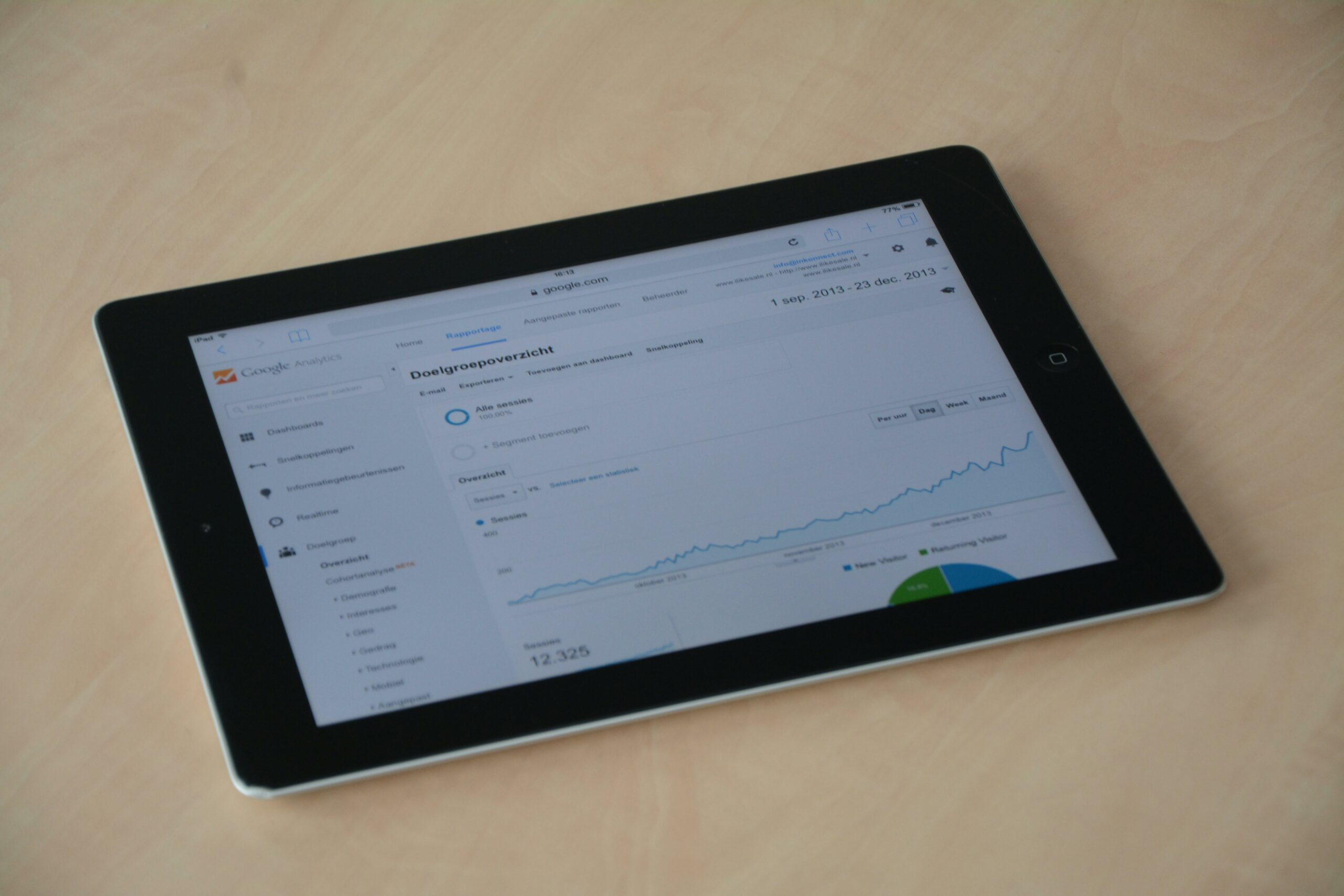

Diagnose traffic drops with a calm, repeatable GA4 workflow that separates real demand changes from tracking noise and reporting quirks. In 2026, most panic comes from mixing metrics (users vs sessions), comparing the wrong date ranges, or missing a tagging change that quietly broke attribution. This guide gives you a practical sequence you can run in under an hour, then expand into deeper analysis when needed. Along the way, you will learn which reports to trust first, what to check in Search Console, and how to translate findings into clear actions for content, SEO, paid, and influencer campaigns. If you manage creator partnerships, this same process also helps you prove whether a dip is a site issue or simply a campaign timing effect.
Diagnose traffic drops – first confirm it is real
Before you hunt for causes, confirm the drop is not a measurement artifact. Start by writing down three things: the metric (Users, Sessions, Views), the scope (All traffic or a specific channel), and the comparison window (week over week, year over year, or pre vs post change). Next, check whether the drop appears in more than one place: GA4 Reports, GA4 Explorations, and any dashboard you use. If only one view shows the decline, you may be looking at a reporting filter, a sampling issue in a third party tool, or a misconfigured exploration. Finally, sanity check with another source like Search Console clicks (for organic) or ad platform clicks (for paid) to see if the direction matches.
| Quick confirmation check | What to look at | What it tells you | Next step if it fails |
|---|---|---|---|
| Metric alignment | Users vs Sessions vs Views | Whether you are comparing like for like | Re-run with one metric across all reports |
| Date range logic | Same weekdays, same seasonality | Whether the comparison is fair | Use 28 days vs previous 28 days and YoY |
| Cross-source validation | Search Console, ad clicks, server logs | Whether demand or tracking changed | Prioritize tracking audit if only GA4 dropped |
| Segmentation | Device, country, browser, landing page | Whether the drop is localized | Investigate the segment with the steepest decline |
Define the metrics and terms you will use (so teams stop arguing)

Traffic drop investigations derail when people use different definitions. Lock these terms early and share them in your incident doc. Reach and impressions matter for influencer reporting, while sessions and conversions matter for site performance, so you need both perspectives. Also, in GA4, attribution and event modeling can change the story if you do not standardize what you are reading.
- Reach – unique people who saw a piece of content (usually platform reported for social).
- Impressions – total times content was displayed, including repeats.
- Engagement rate – commonly engagements divided by impressions (platform) or engaged sessions divided by sessions (GA4). Always state which one.
- CPA – cost per acquisition. Formula: CPA = Spend / Conversions.
- CPM – cost per thousand impressions. Formula: CPM = (Spend / Impressions) x 1000.
- CPV – cost per view (video). Formula: CPV = Spend / Views.
- Whitelisting – running paid ads through a creator handle or allowing a brand to use a creator identity for ads.
- Usage rights – permission to reuse creator content (where, how long, and in what formats).
- Exclusivity – creator agrees not to work with competitors for a period or category.
Concrete takeaway: pick one engagement rate definition for the investigation and put it in writing. If you are comparing influencer landing page sessions to platform impressions, you will also want a simple bridge metric like click-through rate from the platform and session-to-click ratio on site.
A 7-step GA4 workflow to isolate the cause
This workflow is designed to narrow the search quickly, then go deeper only where the evidence points. Keep a running table of hypotheses and what you observed, because memory gets unreliable after the third report. If you want more analytics playbooks tailored to creator and brand teams, browse the InfluencerDB.net blog analytics guides and adapt the templates to your stack.
- Start with Acquisition – In GA4, open Traffic acquisition and compare the same length date range. Identify which default channel group dropped the most in absolute sessions, not just percent.
- Check Landing pages – Open Landing page report and sort by Sessions change. A few pages often explain most of the decline.
- Segment by device and country – A mobile-only drop can indicate a UX bug, consent banner issue, or a Core Web Vitals regression.
- Inspect source and medium – For the affected channel, break down by source and medium to see if one partner, one social network, or one campaign tag is missing.
- Validate conversions and events – If traffic is flat but conversions fell, focus on checkout, forms, or event firing changes.
- Look for timing and releases – Align the drop date with site deploys, CMS changes, cookie consent updates, and campaign launches or pauses.
- Cross-check with external truth – Search Console for organic, ad platforms for paid, and email provider for email clicks.
Concrete takeaway: do not jump into Explorations until you can name the top two channels and top five landing pages contributing to the decline. That short list prevents you from chasing noise.
Channel-by-channel diagnosis and what usually breaks
Once you know where the drop lives, the next move is to apply channel-specific checks. Different channels fail in different ways. Organic declines tend to be page-level and query-level, while paid declines are often budget pacing, disapprovals, or tracking. Social and influencer traffic is especially sensitive to UTM consistency and link placement changes.
Organic Search
If Organic Search is down, verify whether the decline is concentrated in a handful of landing pages. Then open Google Search Console and compare clicks and impressions for the same period. If impressions dropped, rankings or demand likely changed; if impressions are stable but clicks dropped, investigate title changes, SERP features, or a snippet rewrite. Use the official documentation to confirm what each metric means in context: Google Search Console Performance report. Concrete takeaway: prioritize pages that lost both impressions and clicks, because they are most likely ranking or indexing issues rather than just CTR shifts.
Paid Search and Paid Social
For paid, check spend, impressions, and clicks in the ad platform first. A traffic drop with unchanged spend can indicate landing page outages, broken final URLs, or a redirect loop. A traffic drop with reduced spend usually means budget caps, learning phase resets, or policy disapprovals. In GA4, confirm that the paid traffic is still tagged consistently (utm_source, utm_medium, utm_campaign) and that auto-tagging is not being overwritten by manual UTMs. Concrete takeaway: if paid clicks are stable but GA4 sessions fell, suspect tracking or redirect issues rather than campaign performance.
Email and SMS
Email traffic drops often come from deliverability changes, list fatigue, or a link tracking domain issue. Compare sends, opens, and clicks in your ESP, then inspect whether the destination URLs changed. Also check whether your consent banner or cross-domain tracking changed, because that can turn email sessions into Direct. Concrete takeaway: run a test email to yourself and verify that UTMs survive the click and that the landing page loads fast on mobile.
Social and influencer campaigns
For influencer-driven traffic, the first question is whether the posting cadence changed. A pause in creator content can look like a site problem if you only watch total sessions. Next, validate that creator links still resolve correctly and that UTMs are consistent across creators. If you are using link-in-bio tools, confirm the intermediate page did not change or break. Concrete takeaway: keep a standard UTM convention for creators and lock it in your brief, including examples of correct formatting.
Tracking and attribution checks that catch 80 percent of GA4 drop scares
Many “traffic drops” are really tracking drops. In 2026, consent mode behavior, tag manager changes, and cross-domain journeys are common culprits. Start with the simplest checks: did your GA4 tag fire, and did it fire on all templates? Then move into attribution and sessionization issues that can reclassify traffic into Direct or Unassigned.
- Tag firing – Use Tag Assistant or your tag manager preview to confirm GA4 config and events load on key pages.
- Consent banner changes – A new CMP can reduce measured users, especially in EEA. Compare by country to spot this quickly.
- Cross-domain tracking – If you send users to a checkout domain or booking tool, missing cross-domain setup can inflate Direct and reduce source attribution.
- Referral exclusions – Payment processors and third party tools can steal attribution if not excluded.
- UTM overwrites – A redirect or link shortener can strip UTMs, causing social and influencer traffic to fall into Direct.
Concrete takeaway: create a “tracking health” dashboard that monitors event volume for key events (page_view, session_start, purchase, lead) so you can see tag breaks within hours, not weeks.
| Symptom in GA4 | Likely cause | How to confirm | Fix |
|---|---|---|---|
| All channels drop at once | GA4 tag not firing or blocked | Real-time report shows near zero; tag preview fails | Restore tag, check CMP settings, verify on all templates |
| Direct increases while social decreases | UTMs stripped or inconsistent | Click a tracked link and inspect final URL parameters | Fix redirects, standardize UTMs, avoid stripping shorteners |
| Paid clicks stable but GA4 paid sessions down | Auto-tagging conflict or landing page issues | Compare ad platform clicks vs GA4 sessions by campaign | Resolve tagging, ensure gclid not removed, fix final URLs |
| Drop only on mobile Safari | Consent or script loading issue | Segment by browser and device category | Adjust CMP, defer scripts safely, test on real devices |
Turn findings into numbers: simple formulas and an example
Stakeholders want impact, not just diagnosis. Translate the traffic drop into lost conversions and revenue using a few simple calculations. This also helps you prioritize fixes: a 30 percent drop on a low-converting blog section is less urgent than a 5 percent drop on a high-intent landing page.
- Expected conversions = Baseline sessions x Baseline conversion rate
- Observed conversions = Current sessions x Current conversion rate
- Conversion gap = Expected conversions – Observed conversions
- Revenue gap = Conversion gap x Average order value (or lead value)
Example: last month a landing page averaged 40,000 sessions with a 2.5% conversion rate, so expected conversions = 40,000 x 0.025 = 1,000. This month it got 30,000 sessions at the same rate, so observed conversions = 30,000 x 0.025 = 750. The gap is 250 conversions. If AOV is $60, revenue gap is 250 x 60 = $15,000. Concrete takeaway: use this math to justify engineering time for tracking fixes or SEO remediation.
Common mistakes that waste days
- Comparing partial periods – A Monday to Wednesday range will not match a Friday to Sunday range. Align weekdays.
- Using only percent change – A small channel can show a huge percent drop with minimal business impact. Always check absolute sessions and conversions.
- Ignoring landing page mix – If a single high-traffic page lost rankings, overall traffic drops even if everything else is stable.
- Assuming attribution is stable – Consent and UTMs can reclassify traffic without any real behavior change.
- Not documenting changes – Without a change log, you will rely on guesswork. Tie drop dates to deploys and campaign timelines.
Concrete takeaway: keep a lightweight change log that includes site releases, tracking edits, influencer posting dates, and paid budget shifts in one place.
Best practices: a repeatable traffic drop playbook for 2026
After you fix the immediate issue, set up guardrails so the next drop is easier to diagnose. The goal is not perfect measurement, but fast detection and clear ownership. Also, make sure your definitions and tagging rules are written into briefs and SOPs so new team members do not reinvent them.
- Create a weekly anomaly review – Check channel sessions, top landing pages, and key events every Monday.
- Standardize UTMs – Publish a UTM naming guide for paid, email, affiliates, and creators.
- Monitor tracking health – Alert on sudden drops in page_view and primary conversion events.
- Use annotations outside GA4 – Since GA4 annotations are limited, keep a shared doc with dates and changes.
- Train partners – For influencer campaigns, include a link QA step and a UTM example in every creator brief.
For official guidance on how GA4 works and how to interpret acquisition and event data, keep Google’s reference handy: Google Analytics 4 Help Center. Concrete takeaway: if you can answer “what changed” within 30 minutes, your playbook is working.
What to do next: a one-page action checklist
Use this checklist when you need to move from analysis to action quickly. It is designed for cross-functional teams, so each item has a clear owner. If you run influencer programs, add your creator posting calendar and link QA results to the same doc so marketing and analytics stay aligned.
- Analytics owner – Confirm metric, date range, and whether the drop is global or segmented.
- SEO owner – Check Search Console for pages and queries with the biggest click and impression losses.
- Paid owner – Verify spend, disapprovals, and click trends; confirm tagging consistency.
- Web owner – Review deploys, redirects, uptime, and page speed changes around the drop date.
- Influencer manager – Confirm posting schedule, link destinations, and UTM compliance across creators.
When you finish, summarize the story in three lines: what dropped, why it dropped, and what you changed. That short narrative is what leadership will remember, and it prevents the same issue from resurfacing next quarter.